FancyZones
Use Microsoft PowerToys to save a reusable zone for WoW.
Use FancyZonesThese are alternatives to Companion and to each other. Choose the method you intend to use; you do not need to complete both.
Use Microsoft PowerToys to save a reusable zone for WoW.
Use FancyZonesResize WoW yourself. No additional window tool is needed.
Set up manuallyChoose one method above, then continue to its instructions.
FancyZones method only. Follow this section, then continue to confirmation below. Skip manual placement. Companion is not needed.
Install PowerToys from Microsoft Store or another official Microsoft source, then open PowerToys Settings from the Start menu or its system-tray icon. FancyZones is included with PowerToys; no separate installation is needed.
In PowerToys Settings, select FancyZones and turn on Enable FancyZones. Enable Allow zones to span across monitors, Show zones on all monitors while dragging and Hold Shift key to activate zones while dragging. Set Space around zones to zero, then select Open layout editor (called Launch layout editor in some versions).
Keep PowerToys running while using the zone.
In the layout editor, select Create new layout, choose Canvas, and name it something like Offhand. Keep one zone and resize it over the complete area that WoW should occupy, then save and apply the layout.
To reopen the editor later, use its button in PowerToys Settings or the default shortcut Win + Shift + `.
In WoW, choose standard Windowed mode. Hold Shift while dragging the title bar, then drop WoW into the combined zone.
Window placed? Confirm in WoW Change method
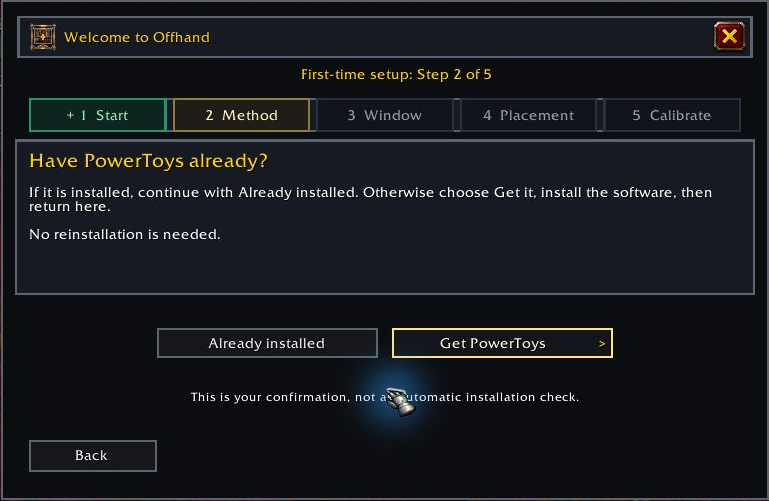
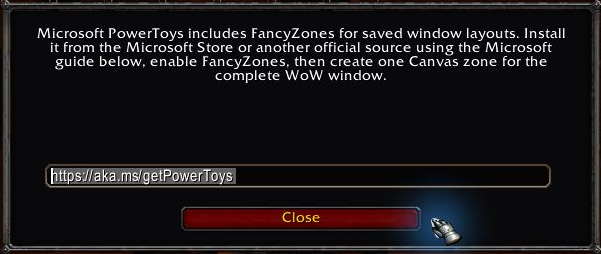
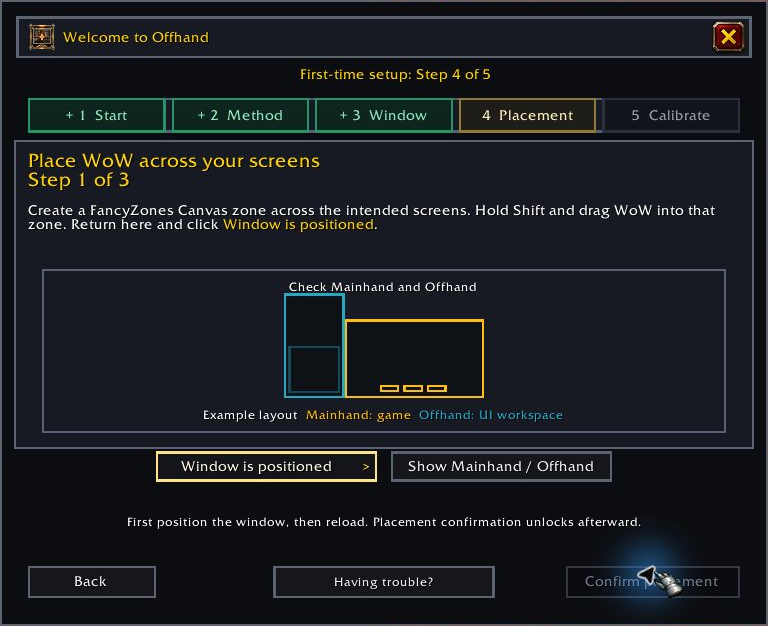
These settings make the combined Offhand zone predictable without changing unrelated Windows behavior. Labels may move between PowerToys releases, but the functions remain the same.
4000×2560 physical display union can therefore legitimately appear in Offhand as approximately 3998×2480. Keep WoW in standard Windowed mode, remove any FancyZones space around the zone, visually confirm the seam, then follow the confirmation step. Offhand stores the detected render canvas and does not require it to equal the monitors’ combined outer rectangle.
Use the addon with manual placement today. A native Mac Companion is in active development and has no public release or release date.
/offhand guide, and choose Configure Manually. In WoW’s Graphics settings, use Windowed so you can move and resize the window.Check that the displays are extended, the window has a title bar, and its edges can reach both screens. Check Displays have separate Spaces under System Settings → Desktop & Dock → Mission Control if the second part disappears when you release the window. For a comparison, try turning it off and sign out and back in if macOS asks. This affects desktop Spaces and how features such as Stage Manager and Split View work on other displays. macOS and WoW may limit how a window spans a particular display arrangement. If either side stays hidden or cannot be clicked, return WoW to a usable window and leave placement unconfirmed.
If you report the result, include your macOS and WoW versions, display arrangement and scaled resolutions, the Spaces setting, and what you could see and click. If the span is usable, include /offhand diag full.
Manual method only. Resize WoW yourself, then continue to confirmation below. Skip FancyZones and Companion.
On macOS, open System Settings → Displays. Set your second display to extend the desktop and select Arrange. On Windows, open Settings → System → Display. Arrange the rectangles to match your screens.
Choose Options → Graphics → Display Mode → Windowed. Do not use Windowed (Fullscreen), which is restricted to one display.
Unmaximize WoW so its title bar and borders are visible. Move it onto the Mainhand display before expanding it across the intended area.
Drag the title bar across the intended displays or ultrawide region. Resize the left, right, top, and bottom borders until the visible canvas is correct.
Confirm the game area is fully visible on Mainhand and the workspace lands on the Offhand display. Account for any black or unreachable area created by unequal display alignment.
Window placed? Confirm in WoW Change method
Offhand stores the confirmed WoW render-canvas dimensions. On later launches, reproduce that size before Offhand reapplies the saved split and panel layout.
WoW does not expose the native window position or physical monitor rectangles to the addon. The title bar remains, placement may need to be repeated after launch, and active disconnect recovery requires Companion.
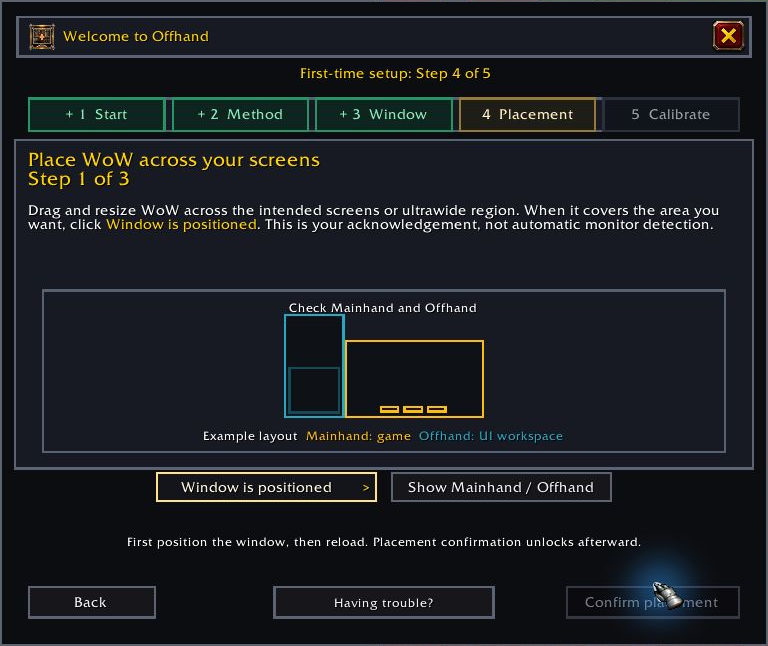
/offhand guide (or open it if needed) and keep the same method you used above: Use FancyZones or Configure Manually. Continue to the window-placement step.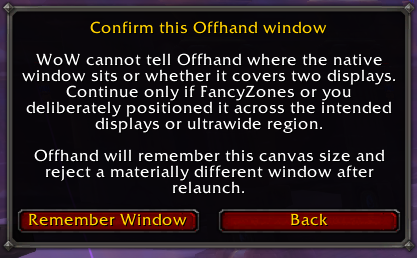
After completing calibration and HUD setup, exit WoW normally and fully relaunch it. Reapply the FancyZones zone or manual window size, then confirm that the workspace panels and Mainhand HUD return. If the result is wrong, follow the symptom-based recovery guide.
If the window does not match, no saved panel positions are deleted. Restore the intended window, open /offhand, and use Remember Current Window again only after you have visually confirmed the placement.
For this workflow, Microsoft PowerToys FancyZones and Offhand Companion perform a comparable desktop-window-management role. They resize or reposition an ordinary Windowed WoW window and are designed not to automate gameplay, send game input, inspect game memory, inject code, or modify game files.
This is not a guarantee of approval or account safety. Microsoft authorship, Microsoft Store availability, open-source code, and security scans do not constitute Blizzard authorization. Blizzard alone interprets and enforces its agreements, and its published EULA states that the platform may monitor for unauthorized third-party programs. Use any desktop utility at your own discretion and stop using it if Blizzard guidance changes.
Read Blizzard's current EULA · Read Blizzard's anti-cheating agreement