1
Start setup
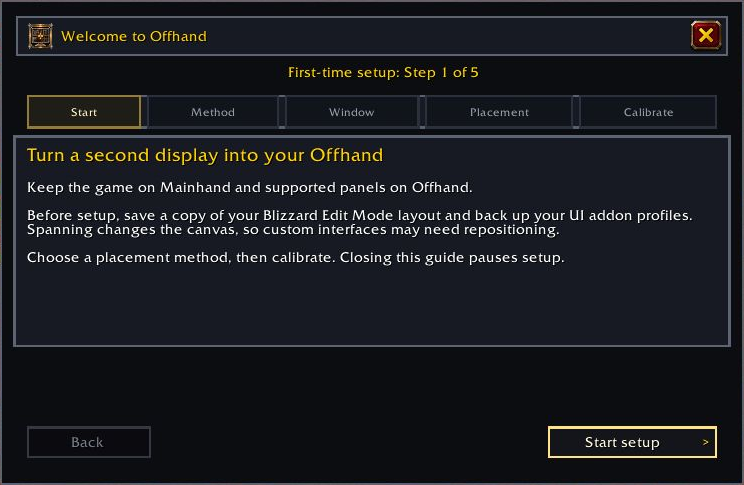
Back up your layouts and review the account risk guidance, then click Start setup.
Open the guide with /offhand guide. Already confirmed placement? Continue with calibration. You do not need to restart the guide.
Back up your layouts and review the account risk guidance, then click Start setup.
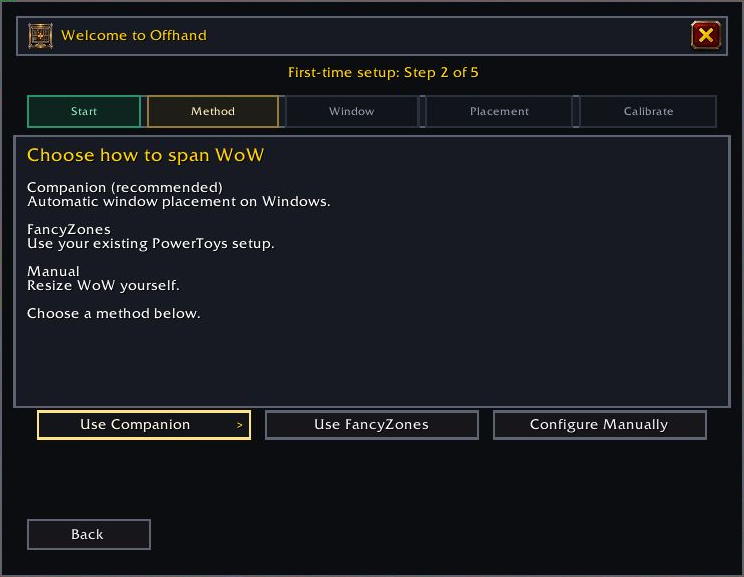
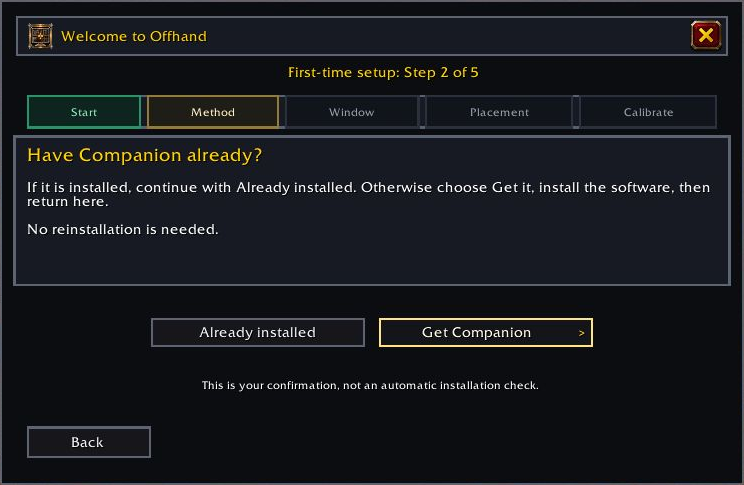
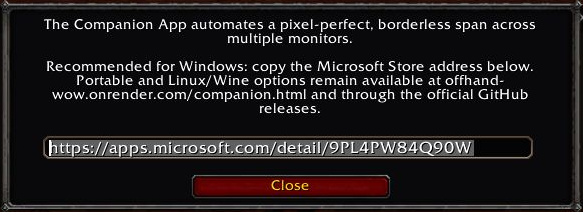
Select the method you already use: Use Companion, Use FancyZones, or Configure Manually. Do not choose a different method just to continue. If your chosen tool is installed, select Already installed.
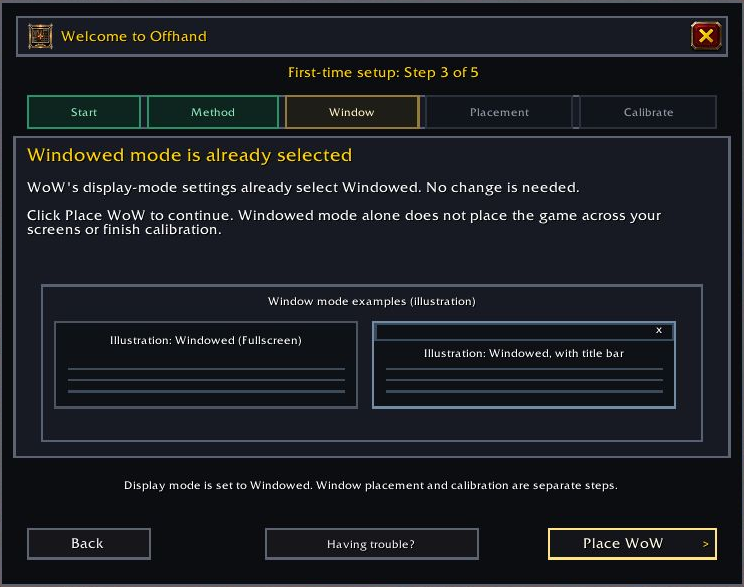
Select standard Windowed, then Place WoW. Windowed (Fullscreen) is different. Windowed mode alone does not span the game.
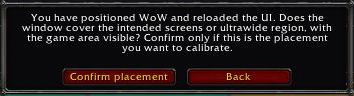
While in the game world, select your screens and Mainhand in Companion and click Span WoW Now. Return to the same guide and choose Window is positioned, then Reload UI. After reloading, use Confirm placement and review the visible result. The FancyZones/manual flow follows the same sequence; physical screen coverage needs your acknowledgement.
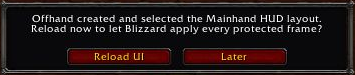
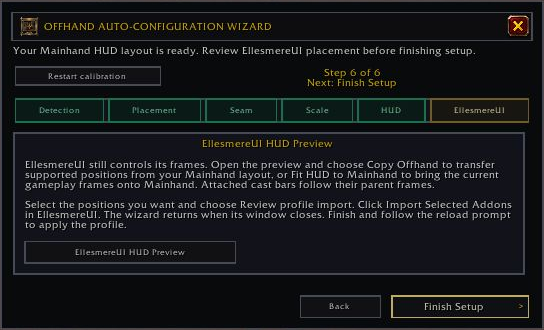
Click Start Calibration. Follow the wizard through Detection, Placement, Seam and Scale. Where supported, create the Mainhand HUD layout when prompted, outside combat with Edit Mode closed. Reload if requested, then check that the action bars, unit frames and minimap are on Mainhand.
Expand a screen reference only when needed. These Forever captures use a single-display split. The wizard also shows an optional EllesmereUI step when that addon is active. With Companion, the wizard uses the geometry supplied by the app.
Calibration complete? Check your workspace
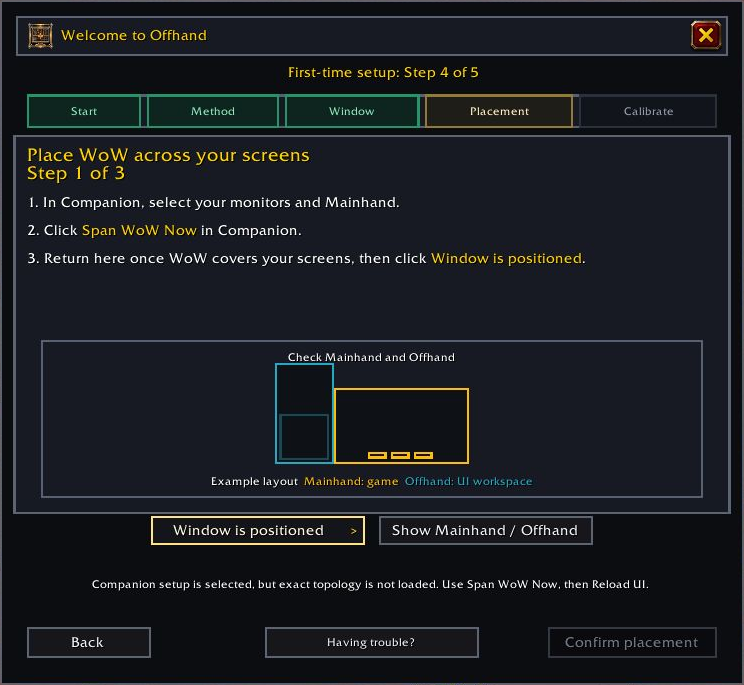
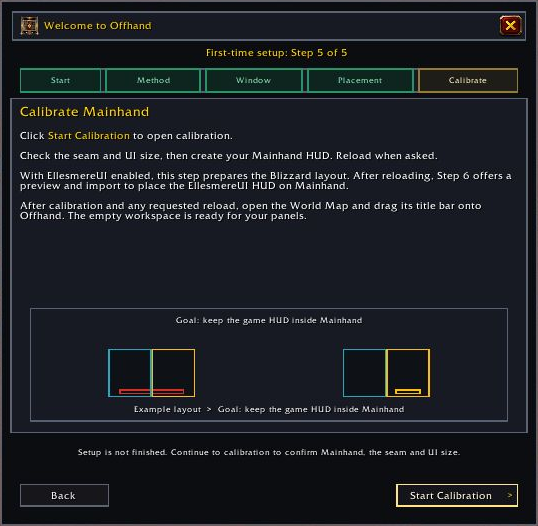
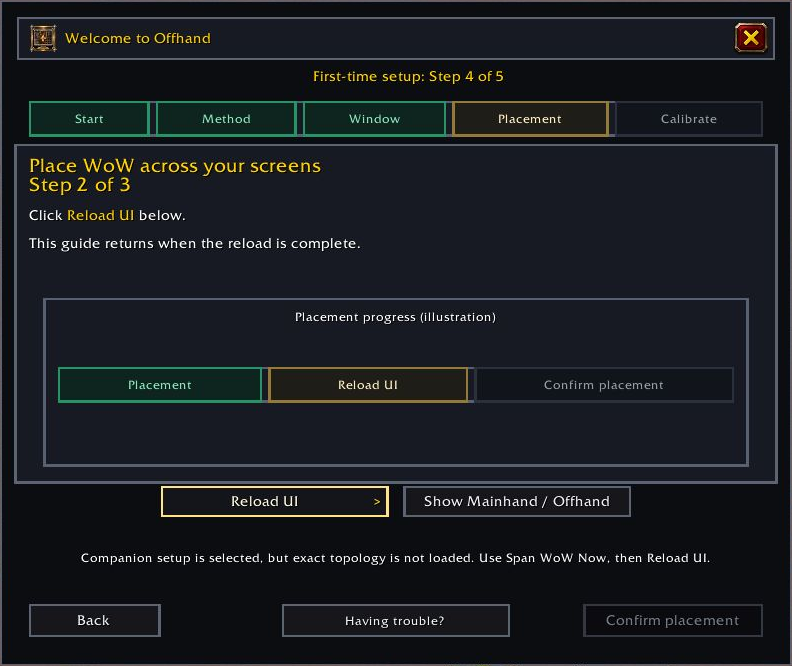
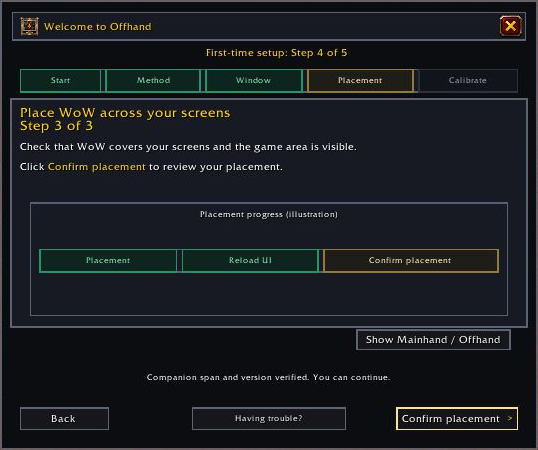
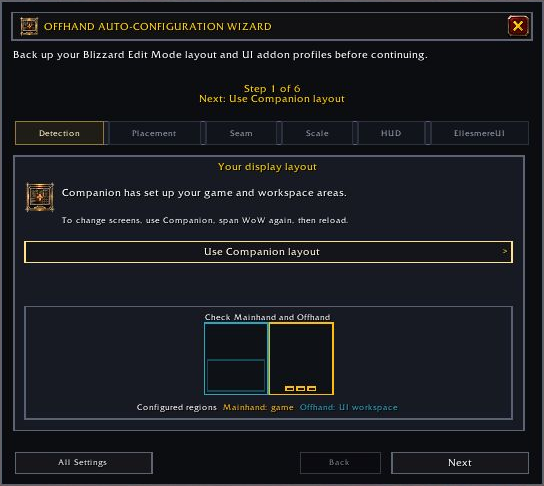
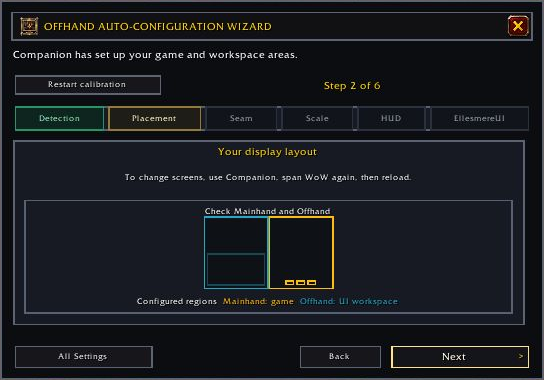
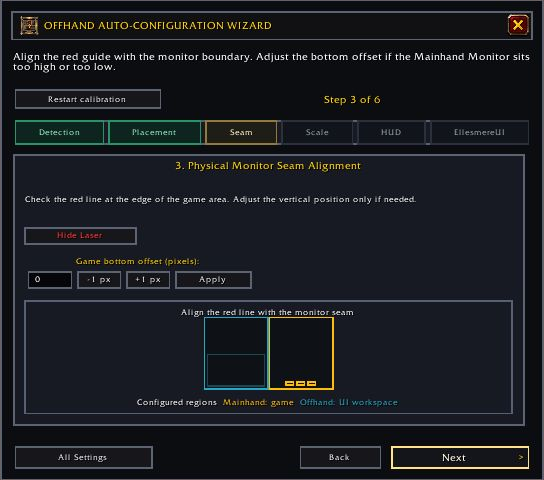
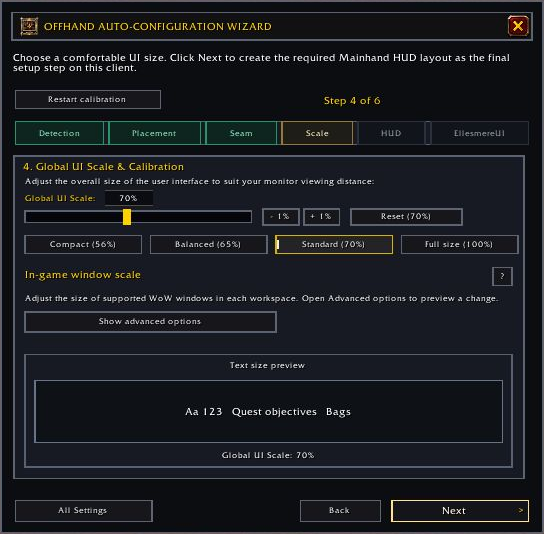
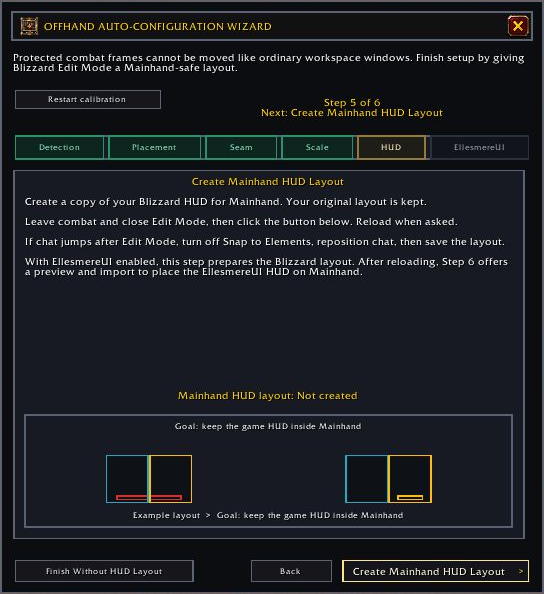
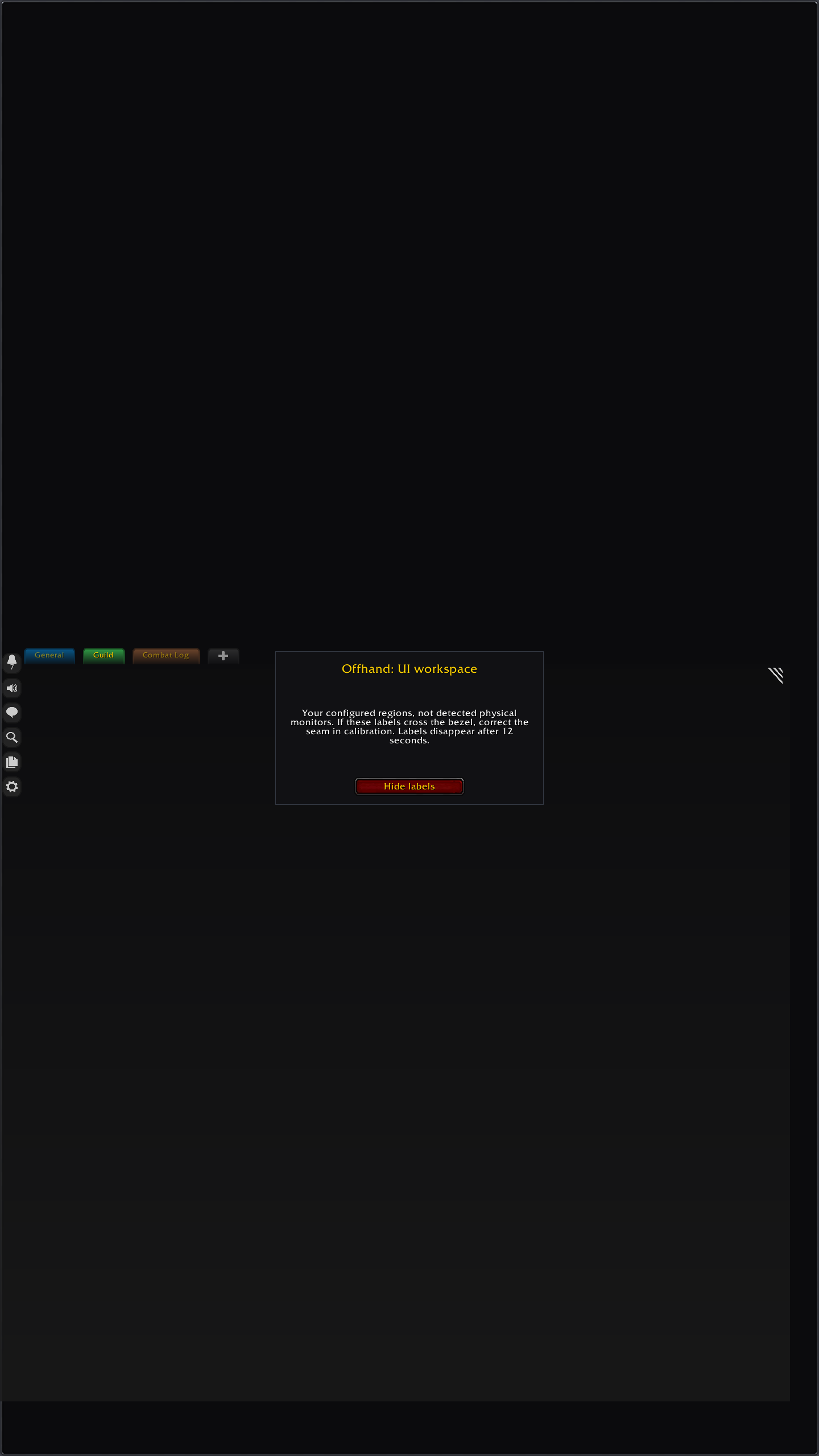
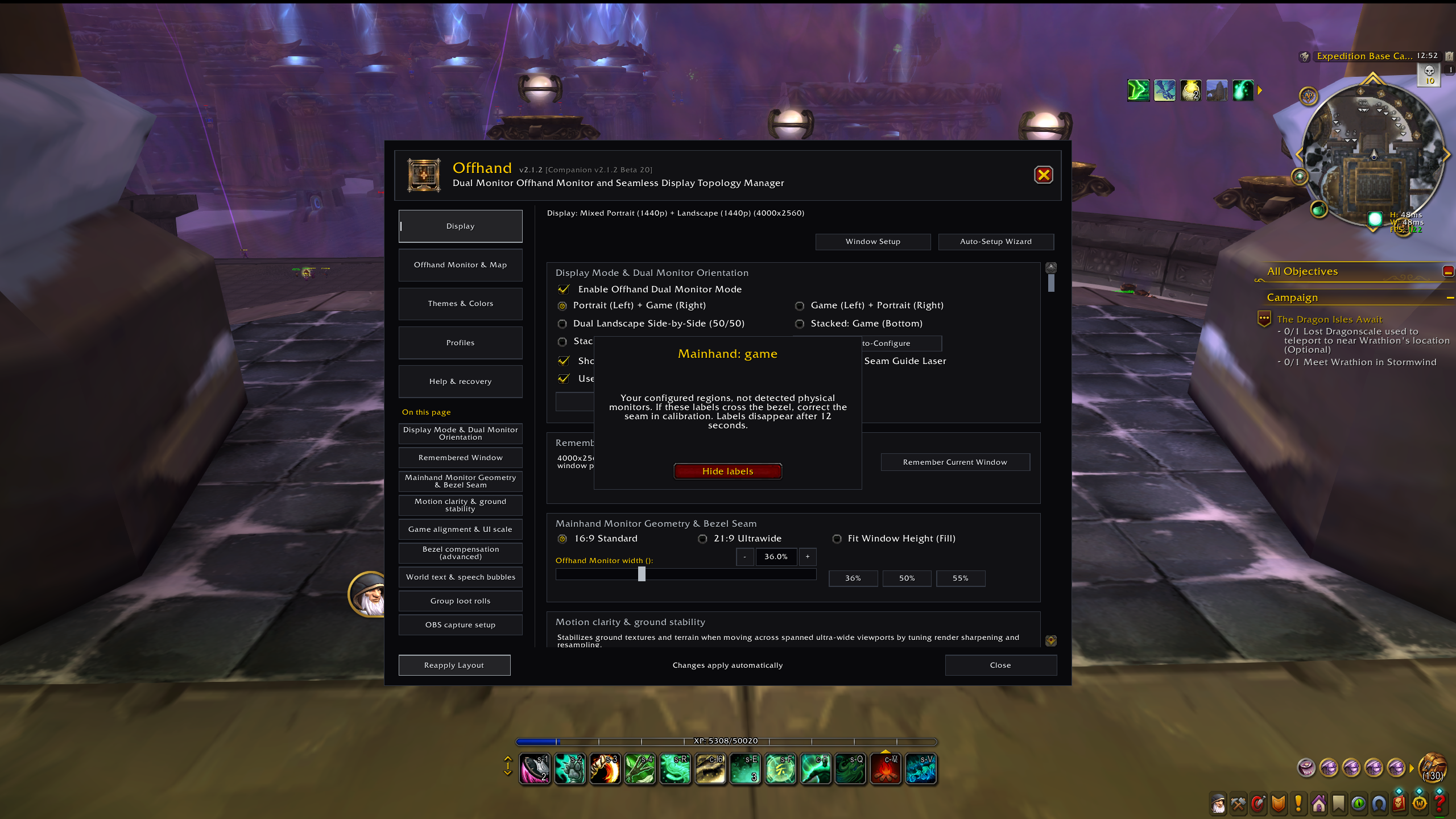
Click Show Mainhand / Offhand in the guide or Display settings. These labels show your configured regions, not automatically detected physical monitors. If they cross the bezel, correct the placement or calibration. Labels disappear after 12 seconds or when you choose Hide labels.
With calibration and HUD setup complete, open the map, bags, Character panel and chat, and arrange supported windows in the workspace. On later launches, restore the window using only your chosen method below.
Apply the saved span before opening workspace panels. Companion may be closed afterward unless you want automatic spanning or active display recovery.
Launch WoW, place it into the saved Canvas zone if Windows did not restore it automatically, and let Offhand validate the remembered dimensions.
Resize and position WoW to the remembered canvas. Only select Remember Current Window again after visually verifying the complete placement.
If the wizard already created your Mainhand HUD layout, keep it and use Blizzard Edit Mode only for personal adjustments. Offhand manages ordinary workspace windows; Blizzard Edit Mode owns protected combat controls.
World Map, Character panel, combined backpack, chat, and supported addon panels can live on the Offhand Monitor. Drag supported frames by their headers and let Offhand remember their positions.
Action bars, unit frames, stance and pet bars, party and raid frames, and other protected combat UI remain under Blizzard ownership. Customize these through Edit Mode after Offhand creates the Mainhand-safe layout.
Outside combat with Edit Mode closed, select Create Mainhand HUD Layout. Offhand clones the active Blizzard layout and moves default HUD anchors into Mainhand while preserving custom-positioned source entries.
Reload when prompted so the generated layout and the rest of the Offhand workspace start from a clean state.
Open Blizzard Edit Mode, fine-tune the generated Offhand layout, and save it. Setup can reuse a compatible account layout on other characters without rewriting its edits. Different display geometry or frame owners may need a numbered layout; native controller layouts use Offhand - Gamepad. Existing character-named layouts remain intact. Keep protected controls inside the visible Mainhand region.
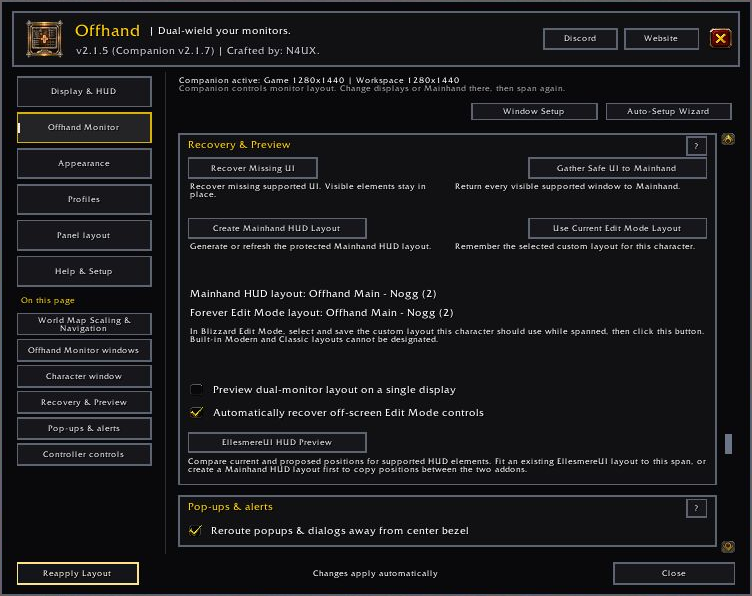
After selecting and saving the custom layout in Edit Mode, return to Offhand Monitor → Recovery & Preview and select Use Current Edit Mode Layout. Designate a saved custom layout. For recovery, use the Modern or Gamepad fallback that matches your input mode.
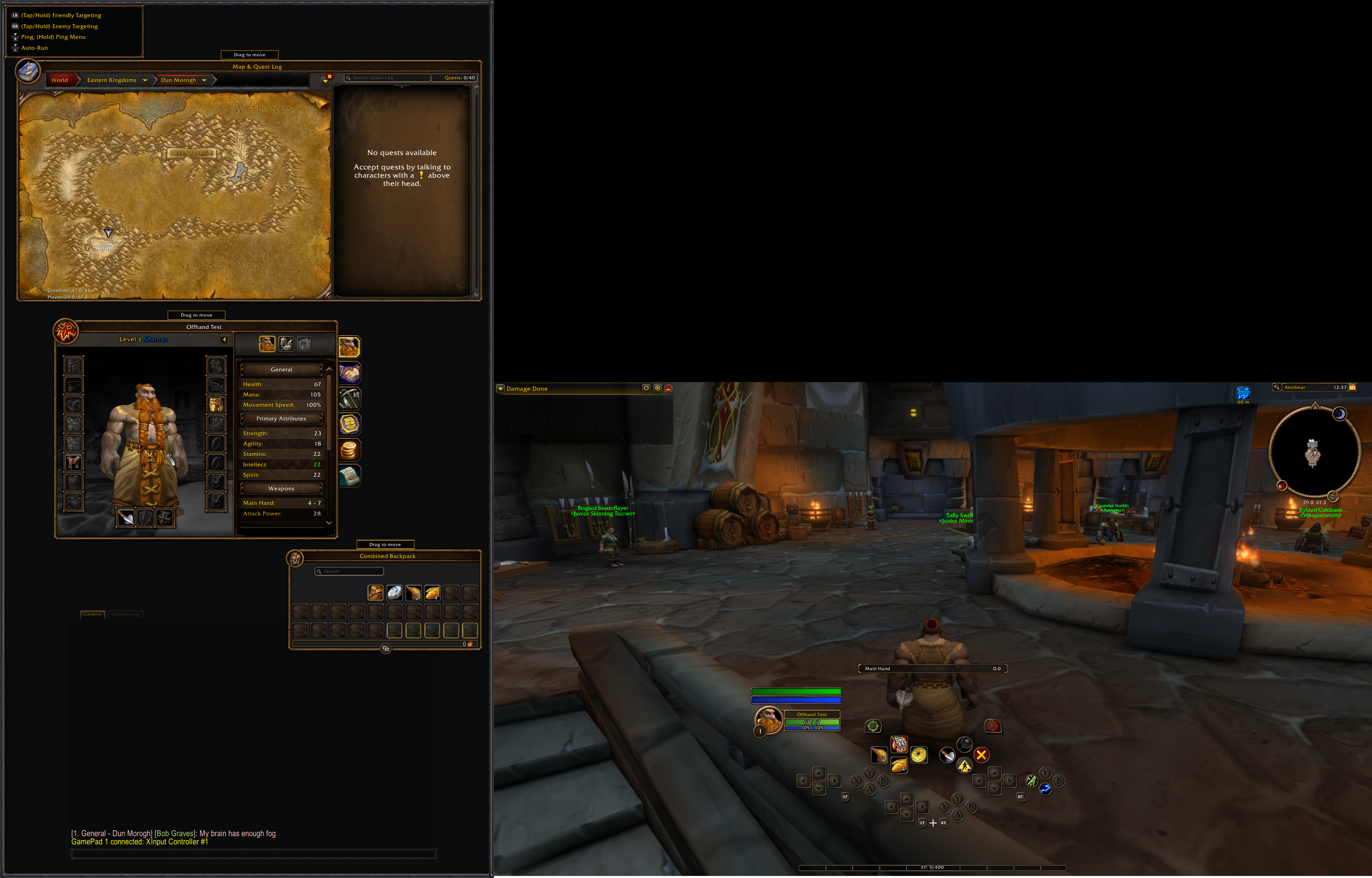
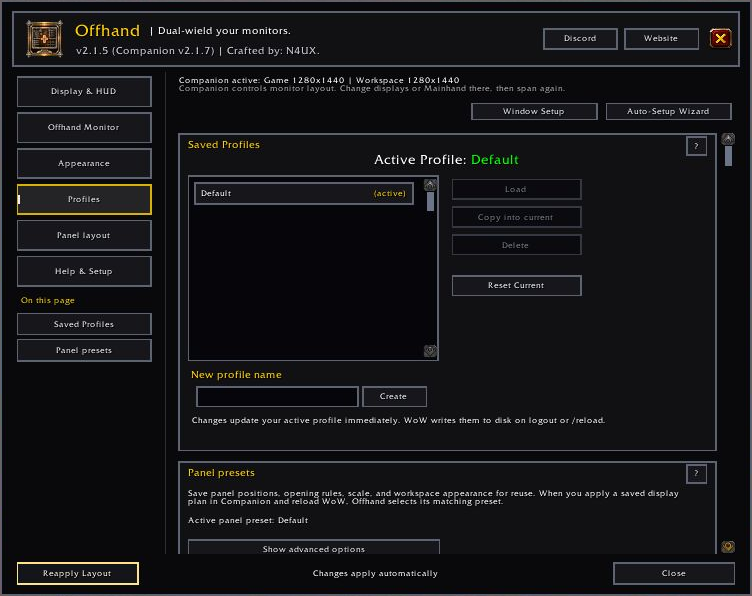
Type /offhand or /oh. Changes update the active profile immediately and WoW writes them to disk on logout or /reload.
Use this tab for monitor orientation, Mainhand geometry, the remembered independent window, camera and UI scale, world text, group-loot placement, and advanced bezel compensation.
Use this tab for the World Map, workspace window behavior, persistence, Pop-ups & alerts, and recovery.
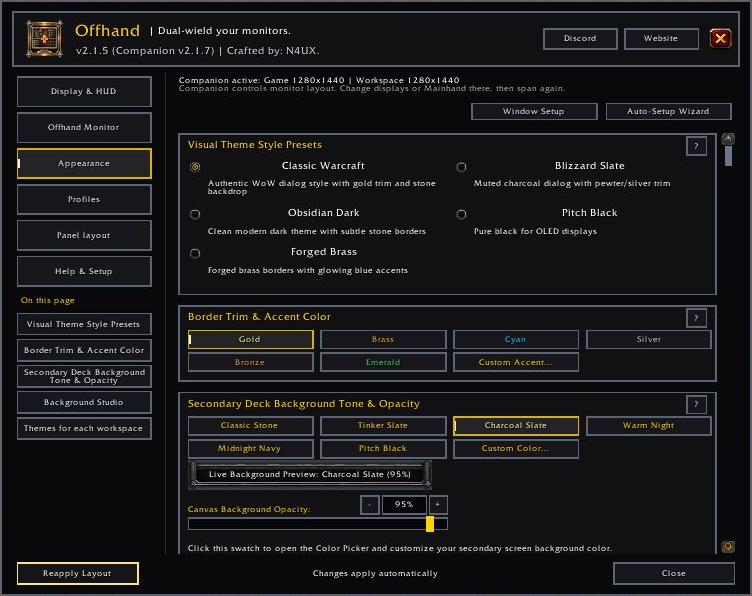
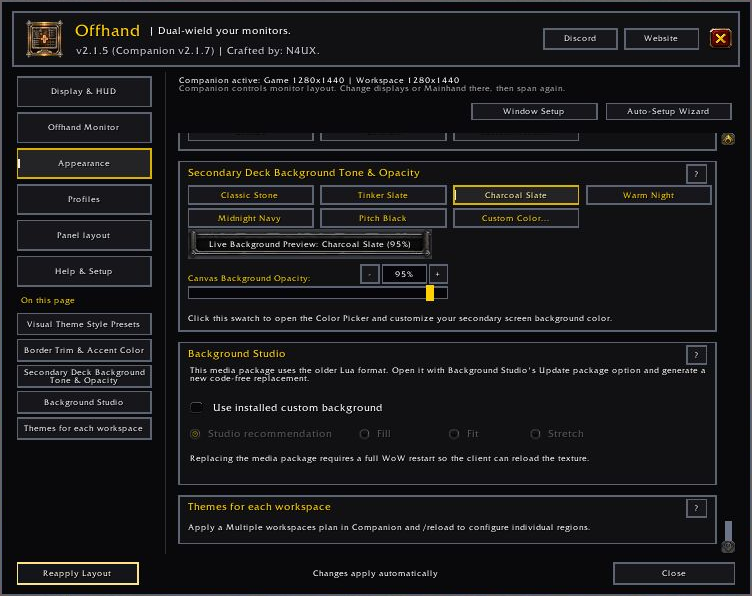
Choose the settings-window style, trim colour, canvas background, and opacity. The Background Studio card reports whether an installed Offhand_UserMedia package is ready.
Create separate groups of Offhand settings for different characters, display arrangements, or play styles. The selected profile is character-specific, while its settings update as you make changes.
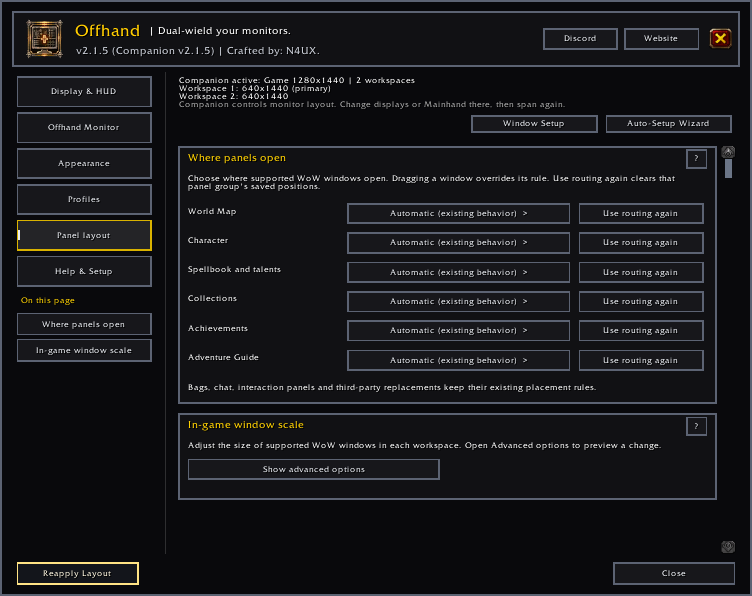
Choose where supported panels open and adjust in-game window scale for each workspace.
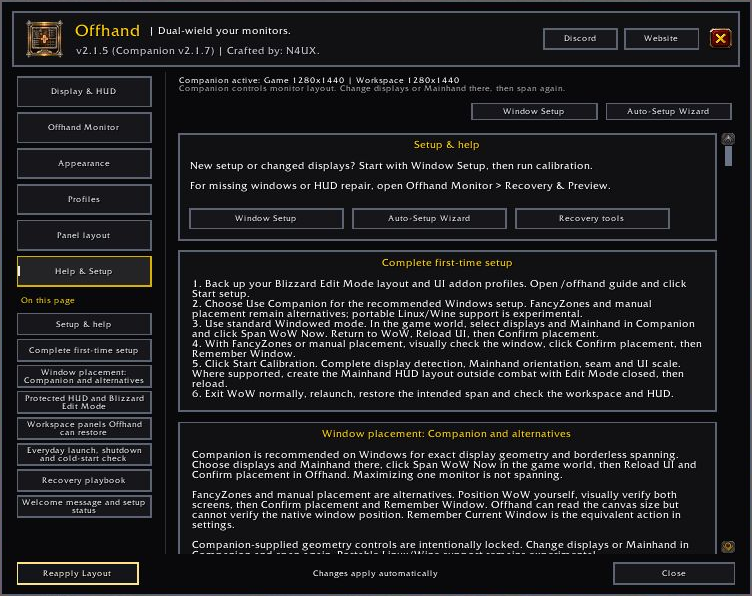
This is the in-game setup and recovery handbook. It reopens the first-time guide, calibration, and common recovery actions without requiring you to return to the website during play.
/offhand guideFirst-time guide/offhand wizardCalibration wizard/offhand diagSupport diagnosticsOpen only the tab you need. Expand a tab to see its controls.
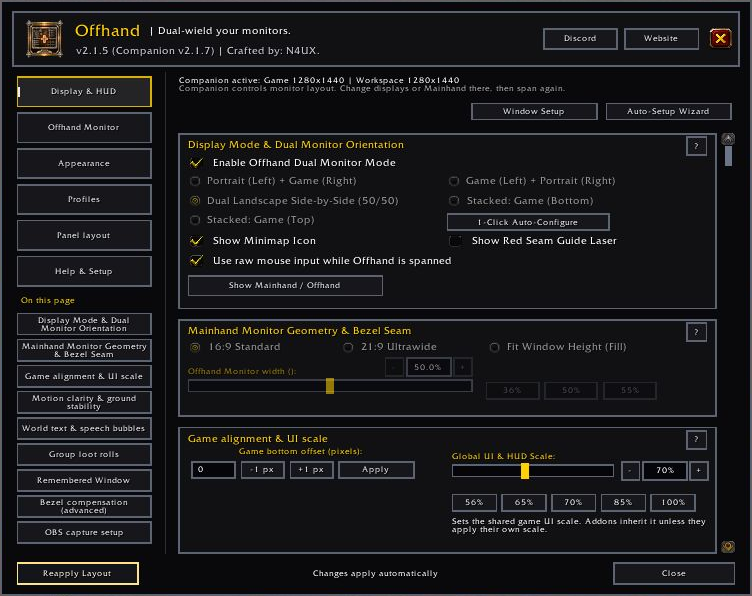
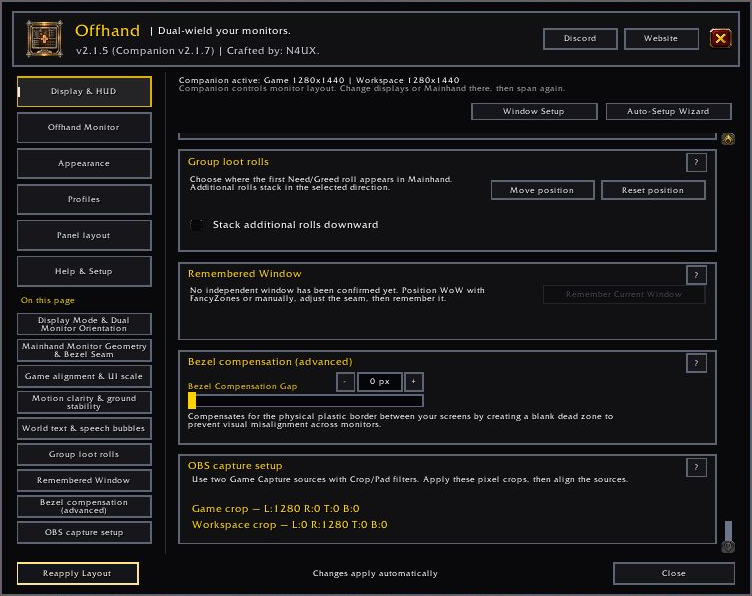
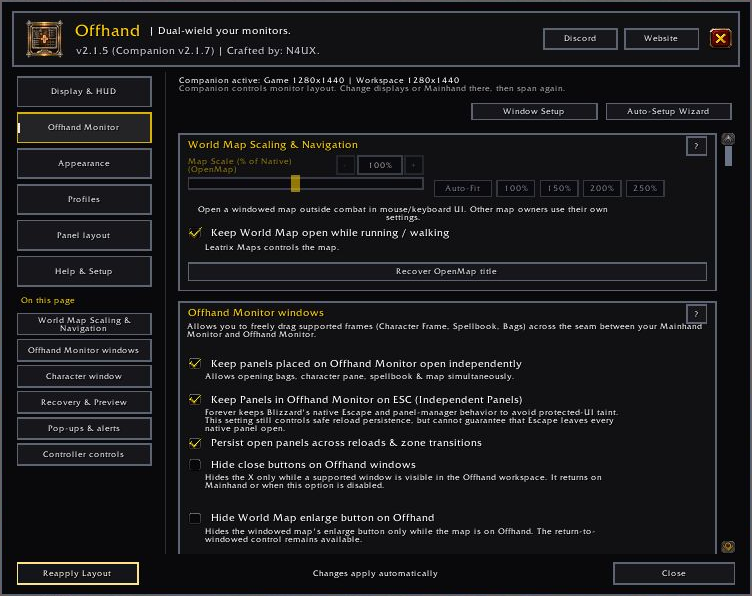
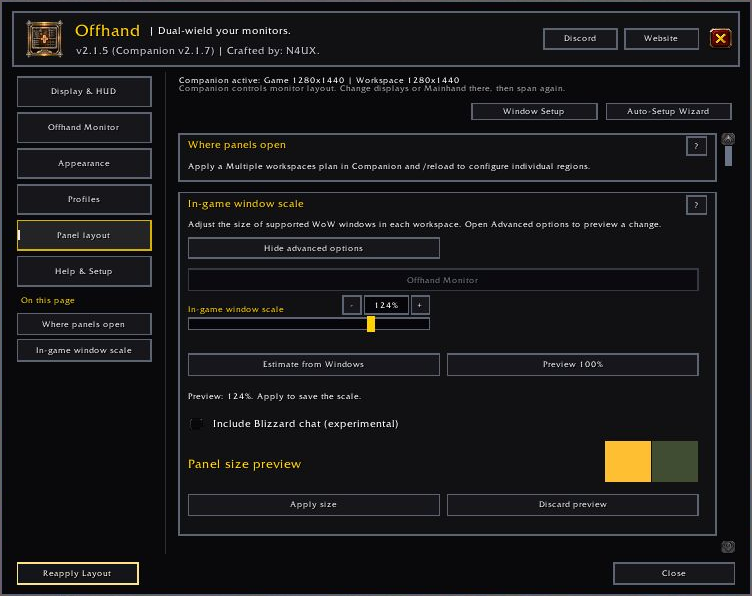
Open /offhand → Panel layout → In-game window scale. The calibration wizard’s Scale step also offers these controls when supported.
This setting sizes supported workspace windows. Adjust overall WoW UI scale in Display & HUD. Character and spell windows have their own controls. Include Blizzard chat is experimental. Protected HUD elements use their Edit Mode layout.
Open Help & Setup for the setup handbook. Welcome to Offhand reopens first-time setup, Auto-Setup Wizard repeats calibration, and Window Setup returns to placement. Start with Recover Missing UI when a supported window has disappeared.
Keep the Companion and addon up to date to use region, routing and workspace-layout controls. Workspace layouts are separate from general addon profiles and Blizzard Edit Mode. Follow the workspace guide for layout selection, named plans, routing, and appearance.
Correct the window before rebuilding in-game placement. Offhand keeps saved panel positions when it falls back to safe single-screen geometry.
Reapply the FancyZones zone, Companion span, or manual size. Reload after a corrected Companion span. For an independent setup, remember the current window only after its placement is visibly correct.
Use your chosen method to restore the window. With Companion, reapply Span WoW Now and follow the wizard’s reload prompt to resume calibration. With FancyZones or manual placement, choose Window Setup to confirm your corrected placement.
Return WoW to a surviving display before changing the HUD. Reconnect the saved display, restore the combined window, then reapply the layout.
Manual Physical Monitor Seam Alignment supports 10% to 90% with 0.1 percentage-point precision. Exact Companion topology sets the physical seam automatically, so manual adjustment is disabled while it is active.
WoW's native loading artwork can span or crop across unequal displays. Offhand's in-world viewport does not control that artwork. If you already use Companion, its Restore Window and Span WoW Now controls can provide a temporary workaround. Keep your chosen placement method; this is not a reason to install another tool. If a border remains inside Mainhand after loading, check the actual window placement, Windows display scaling and bezel settings, then include those details with your report.
Open Offhand Monitor → Recovery & Preview and choose Recover Missing UI. It targets fully off-screen supported elements; anything visible on either display stays in place. Inactive abilities and interaction windows stay closed. Recovered elements may need adjustment, and HUD repair may require a reload.
Gather Safe UI to Mainhand is a broader gather action. Read its confirmation: it can move supported visible workspace windows and update saved positions, including windows that were already reachable. It does not reposition protected HUD systems.
Leave combat, open Blizzard Edit Mode, select the layout intended for this character, reposition the frame, and save. Use Recover Missing UI first if only an off-screen element needs repair. On Forever, use Restore Saved Layout in Recovery & Preview if you need the saved Mainhand HUD for your current setup and input mode. Back up your layout before rebuilding it.
Open Escape → Edit Mode and its layout dropdown. Export a custom layout if you may want it later, then delete only an unwanted layout. Close Edit Mode, reopen /offhand wizard and retry HUD creation. Offhand does not delete layouts for you.
Verify that Offhand User Media is enabled, check the package status on Appearance, and fully restart WoW after replacing the folder.
Open /offhand. Auto-Setup Wizard repeats calibration; Window Setup returns to placement. Use targeted recovery first when only a panel or HUD element needs repair.
/offhand diag gives a quick status summary./offhand diag full includes the detail needed for display geometry, placement, or persistence issues./offhand diag panels, /offhand diag chat, or /offhand diag tooltip for the matching symptom. For a tooltip that appears in the wrong place, /offhand diag tooltip capture records the next tooltip you hover.For Companion setups, include Advanced → Display Diagnostics → Copy Display Diagnostics. Review the output for private details before sharing.